Windows 11’s Start Menu is Getting Smarter—Here’s What’s Changing
Windows 11 has introduced many powerful features designed to enhance productivity, streamline workflows, and improve user experience. However, not all of its features have been smooth sailing for users, especially businesses relying on efficiency.
One persistent frustration has been the Start Menu Recommendations feature. Have you ever clicked on it expecting useful shortcuts, only to find random and irrelevant suggestions? You’re not alone. Many professionals have been ignoring this feature because it simply doesn’t provide the right recommendations.
The good news? Microsoft is fixing it.
Let’s break down what the Recommendations feature was meant to do, what went wrong, and how Microsoft’s latest update will make Windows 11 more intuitive for you and your team.

An office worker looking frustrated while using the Windows 11 Start menu, confused by irrelevant recommendations.
What Is the Windows 11 Start Menu Recommendations Feature?
Microsoft designed the Start Menu Recommendations feature to be a smart assistant of sorts. It’s meant to analyze how you use your PC and display the apps, files, and websites you’re most likely to need next.
How It’s Supposed to Work:
- If you frequently use Microsoft Word, it should appear in your recommendations.
- If you regularly open a certain project file, it should show up for quick access.
- If you visit a specific website for work, it should be suggested in the Start Menu.
The Reality?
For many users, the recommendations have been random and unhelpful. Instead of surfacing useful files or commonly used apps, the Start Menu has been displaying suggestions that don’t make sense—leading many people to ignore this feature altogether.
This has been particularly frustrating for businesses looking for a seamless and efficient workflow. When every second counts, users don’t want to waste time hunting for the right files or applications.
So, what’s changing?

A modern workplace with employees collaborating efficiently, using Windows 11 productivity tools.
Microsoft’s Fix: Smarter Recommendations for Better Productivity
Recognizing the issue, Microsoft has started rolling out updates to improve the Recommendations feature. While these updates are still in testing, early feedback suggests that Windows 11 is now much better at predicting what users need.
Key Improvements in the Update:
✅ Better AI-Powered Suggestions – Windows will now do a smarter job of analyzing your usage patterns, ensuring that the apps, files, and websites it recommends are relevant.
✅ More Context-Aware Recommendations – The Start Menu will now prioritize the files you were working on recently, meaning you won’t have to dig through folders to find them.
✅ Work-Hour Optimization – Microsoft has improved how Windows determines what’s most useful during work hours, helping professionals get straight to the tools they need.
✅ Increased Accuracy – The system will reduce random and irrelevant suggestions, making the Recommendations feature much more useful for day-to-day work.
For businesses, this means less time wasted searching for files and more time focused on getting work done.
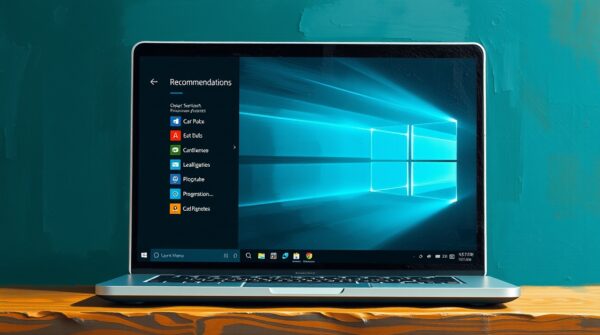
A laptop screen displaying the new and improved Start Menu Recommendations feature, highlighting relevant files and apps.
How to Make the Most of Windows 11’s Productivity Features
While this Start Menu fix is a step in the right direction, there are many other productivity-boosting features in Windows 11 that businesses should take full advantage of.
1. Virtual Desktops for Better Organization
- Create separate desktops for different tasks (e.g., one for emails, another for project management).
- Helps keep workspaces clutter-free and organized.
2. Snap Layouts for Effortless Multitasking
- Arrange multiple windows neatly on your screen.
- Easily switch between tasks without losing focus.
3. Focus Sessions for Distraction-Free Work
- Built into the Clock app, this feature helps employees stay on task.
- Integrates with Microsoft To-Do and Spotify for enhanced focus.
4. Microsoft Teams Integration for Better Collaboration
- Seamlessly connect with team members without leaving the Windows environment.
- Perfect for remote and hybrid teams.
If you’re not fully utilizing Windows 11’s capabilities, you may be missing out on ways to boost your team’s efficiency.
Key Takeaways:
✔️ Windows 11’s Start Menu Recommendations feature has been frustrating for many users.
✔️ Microsoft is rolling out updates to make the feature smarter and more useful.
✔️ The improvements will help businesses save time by surfacing relevant files, apps, and websites.
✔️ Other Windows 11 productivity tools, like Snap Layouts and Focus Sessions, can further improve workflow efficiency.
✔️ If your business needs help optimizing Windows 11 for productivity, reach out for a consultation.
FAQ – Windows 11 Start Menu Updates:
1. How does the Windows 11 Start Menu Recommendations feature work?
It analyzes your recent activity and suggests apps, files, and websites that you’re likely to need next, helping you access them quickly.
2. Why has the Start Menu Recommendations feature been problematic?
Many users found the suggestions to be random and irrelevant, making the feature frustrating and largely ignored.
3. What improvements is Microsoft making?
Microsoft is updating the AI behind the feature to deliver more accurate, context-aware recommendations, making it more useful for businesses.
4. When will the updated Start Menu be available?
The update is currently in testing and should be rolled out to all Windows 11 users soon.
5. How can my business take full advantage of Windows 11?
Beyond the Start Menu improvements, Windows 11 offers many powerful productivity features. A consultation with our team can help optimize your workflow for maximum efficiency.
Final Thoughts: Is Your Business Maximizing Windows 11?
With Microsoft’s latest updates, the Start Menu is finally becoming the productivity tool it was meant to be. If you’ve been frustrated by random and unhelpful recommendations in the past, these improvements should make a real difference in your daily workflow.
But that’s just one part of Windows 11’s potential. Are you leveraging all the productivity-boosting tools available?
We specialize in helping businesses optimize their technology for maximum efficiency. If you’d like a personalized consultation on how to improve your team’s workflow, let’s talk.
Get in touch today to schedule a discovery call!