Microsoft Teams Introduces Custom Notification Positioning
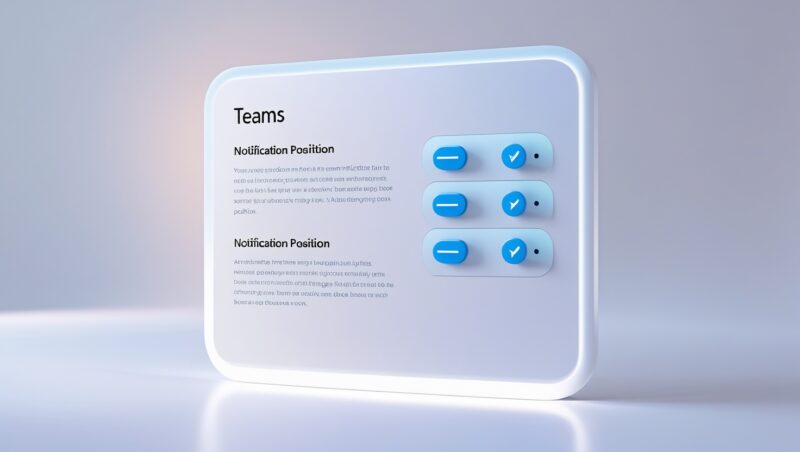
Microsoft has rolled out a highly requested feature—the ability to customize where notifications appear in Teams. This update, currently in Public Preview, allows users to position alerts in:
✅ Top-left
✅ Top-right
✅ Bottom-left
✅ Bottom-right
For businesses in Leeds, Manchester, Huddersfield, and across Yorkshire, this means fewer distractions and better workflow control.
Why This Matters for Your Business
1. Minimize Distractions
Move notifications to less intrusive corners (e.g., bottom-left if you work with right-side apps).
Example: A Leeds accounting firm could keep alerts visible but out of the way during spreadsheet work.
2. Boost Productivity
Fewer interruptions during video calls or document editing.
Ideal for hybrid teams in Manchester & Wakefield, juggling multiple tasks.
3. Personalized Workspace
Left-handed users? Prefer top-aligned alerts? Now you choose.
How to Enable Custom Notification Positioning
For End Users
Ensure you’re on the new Teams client (Windows).
Go to:
Settings > Notifications and Activity > Display
Select your preferred notification position via radio buttons.
For IT Admins (Yorkshire Businesses)
To enable Public Preview features for your team:
Sign in to Microsoft Teams Admin Center.
Navigate to:
Teams > Teams Update Policies
Create/Edit a policy and toggle:
“Show Teams Preview Features” → “Users can opt in” (or “On for everyone”).
⚠️ Note: Only available for Teams Public Preview or Microsoft 365 Targeted Release users.
Recent Teams Updates You Might Have Missed
| Feature | Benefit | Availability |
|---|---|---|
| Pop-out Chat/Copilot in Meetings | Multitask during calls | Public Preview |
| “Early Access” toggle | Test upcoming features | New Teams client |
| Custom Background Noise Suppression | Clearer audio | Rolling out now |
Key Takeaways:
✔ Notifications can now be moved to any screen corner.
✔ Reduces distractions—critical for finance/legal teams in Leeds.
✔ IT admins must enable Preview for staff access.
✔ Combine with “Focus Mode” for maximum productivity.
FAQ:
1. Is this available on Mac/mobile?
Currently Windows-only (new Teams client).
2. Can I set different positions for different alert types?
No one position applies to all notifications.
3. Will this come to the stable version soon?
Likely in Q3 2024, based on Microsoft’s rollout patterns.
4. How does this help remote workers?
Fewer pop-up disruptions when sharing screens in Halifax/Huddersfield hybrid teams.
5. Need help configuring Teams for my business?
Netpoint Solutions provides Microsoft 365 onboarding & training.
Optimize Your Teams Setup Today!
Want to streamline collaboration? We help Yorkshire businesses:
✅ Deploy & customize Teams
✅ Train staff on new features
✅ Configure security policies
FREE Teams Productivity Audit Today!